Idézet: indike - Dátum: 2006. jan. 9., hétfő - 19:16
Sziasztok!
Lenne egy kis off kérdésem!
Asrock
''Free Bundle VGA_HDTV panel with VGA and 3 RCA-type component video output, that allows PC to connect to all high-definition TV with component video input capability''
1. tehát kapok hozzá egy vivo karit, jólértem?
2. ez csak hdtv-khez jó? vagy a simákkal is müxik?
3. milyen magas ez a kari?
4. az alaplapon nincs egy TVout?
5. másik géppel müxik-e?
előre is köszi!!!

"
Accessories- Quick InstallATIon Guide, Support CD, I/O shield
- Floppy/ATA 133 cables
- 1 x SATA data cable
- 1 x SATA 1-to-1 power cable
- 1 x MR card
- 1 x VGA_HDTV panel
- 1 x VGA_2x8 cable
- 1 x AV/S_2x3 cable"
A Manualban azt írják a Connector résznél: "1 x TV OUT Header" ami tulajdonképpen az alaplapra ráültetett csatlakozó tüskéket jelenti, tehát inne még ki kellene vezetni valahogy a jelet pl. az elvileg mellékelt 1 x AV/S_2x3 cable kábellel.
2.9 Installing VGA_HDTV Panel to Enjoy HDTV (High- Definition TV) / TV Support Function
Additional VGA_HDTV panel with VGA and 3 RCA-type component video output, that allows PC to connect to all high-definition TV with component video input capability (YPbPr) or TV with AV input capability.
ASRock VGA_HDTV Layout
1: Y-CON1
2: PB-CON1
3: PR-CON1
4: VGA1
1 Y-CON1: RCA-type component video connector (green)
2 PB-CON1: RCA-type component video connector (blue) / AV (composite) signal connector
3 PR-CON1: RCA-type component video connector (red)
4 VGA1: 25pin D-Sub (blue) for VGA monitor
5 J2 header
6 J1 header
Installing VGA_HDTV Panel
Step 1. Either end of the VGA_2X8 cable can be connected to the J1 jumper of
VGA_HDTV panel or the VGA1 header of this motherboard.
Step 2. Either end of the AV/S_2X3 cable can be connected to the J2 jumper of
VGA_HDTV panel or the TV-OUT header of this motherboard.
Step 3. Connect the output connectors to all high-definition TV with component video
input capability (YPbPr) or TV with AV input capability.
Step 4. Secure the VGA_HDTV panel with the bracket to the chassis.
2.9.1 HDTV (High-Definition TV) Support Function
View computer output directly on your High Definition Television (HDTV) or other devices with component video input capability. Provide a big-screen experience for your computer that is ideal for playing games, giving presentations, watching movies, and browsing the Internet.
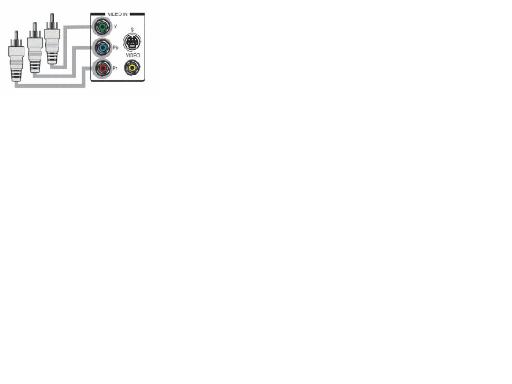
HDTV uses YPbPr connectors to receive input. The HDTV Component Video Adapter can be used in place of the standard AV Output cable to connect to an HDTV or other component video input devices, using component video cables.
Connecting to HDTV With Component Video (YPbPr) Output Capability
Step 1. Connect the Male/Male RCA patch cables to the Typical HDTV component
Video Input connectors and the RCA-type component video connectors
(Y-CON1, PB-CON1, and PR-CON1) (Y-CON1, see page 21, No. 1; PB- CON1, see page 21, No. 2; PR-CON1, see page 21, No. 3) of the VGA_HDTV panel.
Step 2. Turn on your computer and wait system to boot into OS. Step 3. Change HDTV display settings.
A . Click the Windows Start button, point at Settings, and then click
Control Panel.
B. Double-click the Display icon, click the Settings tab, and use the
Screen Area slider to select the resolution you want.
C. Click the Advanced button, then click the Displays tab. D. Click the YPbPr tab.
E. Click OK.
F. Click the Advanced button.
G. Click the Adapter tab, then click the List All Modes button.
H. You can only choose 480i and 480p modes (640 x 480; 704 x 480;
720 x 480), 720p modes (960 x 720; 1280 x 720), or 1080i modes
(1920 x 1080). Click the mode according to your HDTV screen.
• 60Hz = Progressive
• 30Hz = Interlaced
Connecting to VGA Monitor and HDTV With Component
Video (YPbPr) Output Capability
When you install both VGA monitor cable and Male/Male RCA patch cables to VGA_HDTV panel at the same time, the default enabled screen is the VGA monitor. You are able to switch the monitor display to HDTV display by following the below instruction.
Step 1. Connect one end of the VGA monitor cable to your monitor, and the other end to the VGA port (VGA1, see page 21, No. 4) of VGA_HDTV panel.
Step 2. Connect the Male/Male RCA patch cables to the Typical HDTV component
Video Input connectors and the RCA-type component video connectors
(Y-CON1, PB-CON1, and PR-CON1) (Y-CON1, see page 21, No. 1; PB- CON1, see page 21, No. 2; PR-CON1, see page 21, No. 3) of the VGA_HDTV panel.
Step 3. Turn on your computer and wait system to boot into OS. Step 4. Enable the TV display. Please follow the below steps:
A . Access the Windows Control Panel. Double-click Display. B. Click the Settings tab and then the Advanced button.
C. Click the ATI Displays tab. Click the TV button.
...és így tovább nem rakom be az egész manualt...
Szerkesztette: akaido 2006. 01. 09. 20:05 -kor
A legbiztosabb jele annak, hogy létezik intelligens élet a Földön kívül az az, hogy még nem próbáltak kapcsolatba lépni velünk.